
Symptom
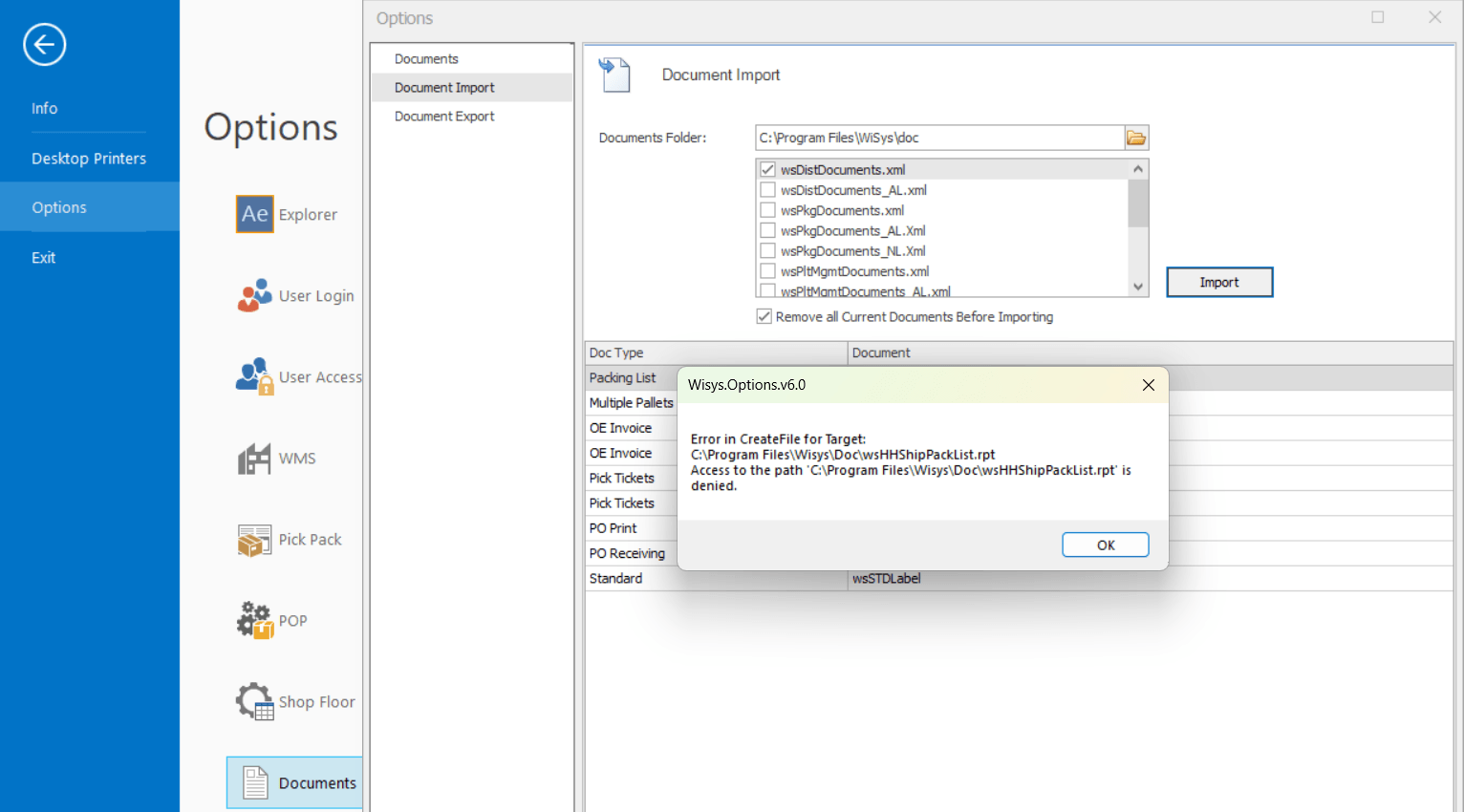
When importing report documents from Options > Documents > Document Import in Agility Explorer, one or more of the following errors appears (one per affected file):
Error in CreateFile for Target: C:\Program Files\Wisys\Doc\wsHHShipPackList.rpt — Access to the path 'C:\Program Files\Wisys\Doc\wsHHShipPackList.rpt' is denied.
Root Cause
By default, the WiSys Documents Folder points to a path under C:\Program Files\Wisys\Doc. Since Windows Vista, Program Files is a protected system directory: standard Windows user accounts can read and run files there, but cannot write to or overwrite files in it without elevated (administrator) rights or explicit folder permissions.
Document Import works by overwriting the existing .rpt files in that folder with the versions being imported. When the Windows account running Agility Explorer does not have write/modify permission on the folder (and is not running the application elevated), Windows blocks the write and Agility Explorer reports "Access to the path ... is denied" for each file it cannot replace.
Resolution
Option 1: Grant sufficient security privileges to the WiSys folder (recommended)
-
Close Agility Explorer.
-
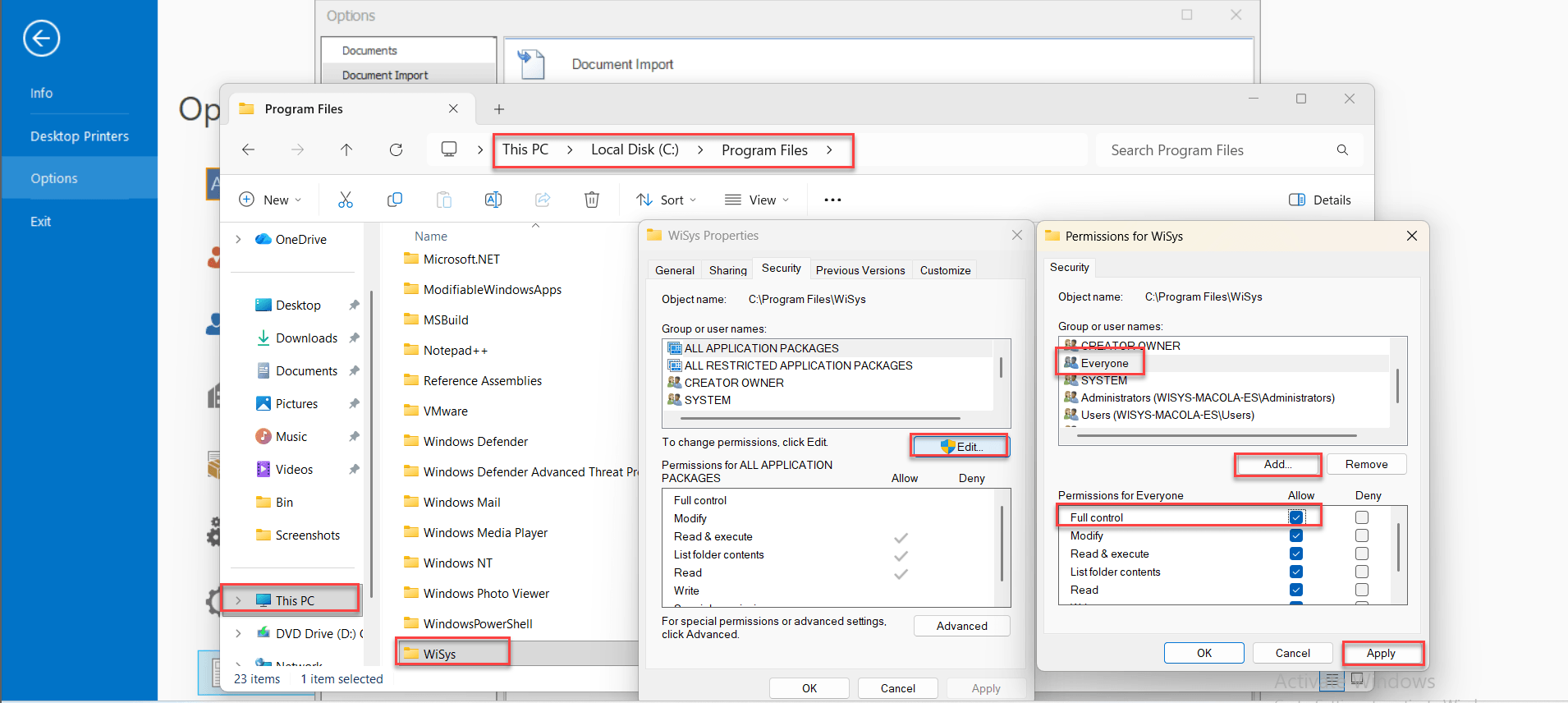
In File Explorer, browse to C:\Program Files, right-click the WiSys folder, and choose Properties.
-
Go to the Security tab and click Edit.
-
In the Permissions window, click Add, type Everyone (or the specific user/group that runs Agility Explorer), and click OK to add it to the list.
-
Select Everyone (or that user/group) in the list and check Full control under Allow.
-
Click Apply, then OK to close the Permissions and Properties windows.
-
Reopen Agility Explorer and retry Options > Documents > Document Import.
Option 2: Run Agility Explorer as Administrator (quick workaround)
-
Right-click the Agility Explorer shortcut or executable.
-
Choose Run as administrator.
-
Retry Options > Documents > Document Import.
Note: this only fixes the import for that session. Granting folder permissions (Option 1) is the permanent fix for users who run imports regularly.
Additional Notes
-
This error can appear once per document in the import list — each affected .rpt file will show its own "Access to the path ... is denied" message. Click OK through each one, then verify whether the documents actually updated before assuming the import succeeded.
-
If company IT policy does not allow changing permissions on Program Files, the WiSys Documents Folder path (on the Document Import screen) can instead be pointed at a non-protected location the user has full rights to, such as a folder under C:\WiSys\Doc or a shared network path.
-
This is a Windows file-permission issue, not a corrupted document or a WiSys application bug — the same document files import without error once the target folder is writable.